Showing posts with label PC Tricks. Show all posts
Showing posts with label PC Tricks. Show all posts
Facebook
is currently the biggest online ada where people join and translate
each others thoughts and communicate in many different ways by chatting,
sending emoticons
and sharing images, well now to make some more adjustments we have
found an interesting and easy way for changing your Facebook’s login
page background image. We tried to do it and applied interesting
abstract flower image which you can check below.

Now as you can see in the above image we have changed the background image and style of Facebook Login Page, well now I just applied some random abstract image, you can go with any one applying your personal or with friends image on the background. So now when ever any one opens Facebook.com on your PC if will be greeted by that image with options to Log-In on Facebook.
2. After you have installed the extension now just head over to Facebook.com and you will see that page in a new way something like above but obviously not that image, so now you have to click on the small gear icon above the Log In button.

3. Now after you click on the small Gear Icon you will see window like above asking you to insert the image URL for the image you wanna use for the background (If you wanted to use the same image we have used in the above demo image than you can grab the link here)
4. Now you can choose if you wanna repeat the image and in which direction X for Horizontal and Y for Vertical and than just click on Save Boom, now just navigate to Facebook.com and enjoy the new fresh background.

Now as you can see in the above image we have changed the background image and style of Facebook Login Page, well now I just applied some random abstract image, you can go with any one applying your personal or with friends image on the background. So now when ever any one opens Facebook.com on your PC if will be greeted by that image with options to Log-In on Facebook.
Steps to Change FB Background Image
1. Make sure chrome is installed now install the FB Refresh Extension.2. After you have installed the extension now just head over to Facebook.com and you will see that page in a new way something like above but obviously not that image, so now you have to click on the small gear icon above the Log In button.

3. Now after you click on the small Gear Icon you will see window like above asking you to insert the image URL for the image you wanna use for the background (If you wanted to use the same image we have used in the above demo image than you can grab the link here)
4. Now you can choose if you wanna repeat the image and in which direction X for Horizontal and Y for Vertical and than just click on Save Boom, now just navigate to Facebook.com and enjoy the new fresh background.


I have given tutorial for Opera, Mozilla Firefox, Google chrome, IE, IDM. Just follow steps mentioned by us and Enjoy All Networks Free GPRS Tricks on your PC.
For Opera:
1) Click on opera logo (Upper right corner)
2) Settings
3) Preferences
4) Advanced
5) Networks
6) Proxy servers
7) Now just fill our given ip & Port there. Enjoy !!
For Internet Explorer and Google Chrome:
Just Follow This Steps
1) Click on start butt0n Then go to Run [Or Simply Press win + R ] and Type inetcpl.cpl and click on ok
2) You Can see The Following Window was appear Click on connection Tab,Now Select You Modem or Device which one you are using to connect the internet after that Click on Settings.
3) Now Following window will appear,Here you have to mark the check box saying “Use Proxy Server For This Connection”.Add Here proxy address and port which you want to use as shown in below screen shot.Now Click on OK
If you are using LAN connection or Usb modem(Mobile Broadband connection),Then you can change proxy and port setting as shown in below screens shot.
For Mozilla Firefox :
Just Follow This Steps
Open your Browser
Then Go to Tools And go to Options
Then Go to Advance Tab And Go Network Tab From it.Now Click on Setting.
And Select on Manual proxy Configuration
Now Add Proxy Address and port also mark the check box blelow it saying ” Use This Proxy For All Protocols”
Done
Setup Proxy and Port in IDM:
Open your internet download manger
click on Downloads in Menu-bar And go to Option
Then Proxy/Socks Tab From it.
Now Mark the check box Saying Use Proxy
Now Add Proxy Address and port also mark the check box below it saying ” Use This Proxy For Following Protocols”
and Mark all check box below it of HTTP,HTTPS and FTP
Click on OK
Done
All things done perfectly now enjoy unlimited 3G internet in your PC and big files fast downloading in IDM too.
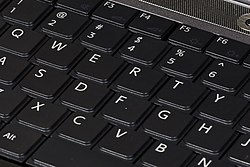 These days are very interested to use shortcut keys & some newbies
asked me to list it, but now I’m back to college, so i listed out the
top 21 & we will blog the whole shortcut keys list later. Now let us
see the top 21 desktop shortcut keys.
These days are very interested to use shortcut keys & some newbies
asked me to list it, but now I’m back to college, so i listed out the
top 21 & we will blog the whole shortcut keys list later. Now let us
see the top 21 desktop shortcut keys.- Windows key + E = Explorer
- Windows key + Break = System properties
- Windows key + F = Search
- Windows key + D = Hide/Display all windows
- Windows key + R = Run command pop-ups
- ALT + Tab = Switch between windows
- ALT, Space, X = Maximize window
- CTRL + Shift + Esc = Task Manager
- CTRL + C = Copy
- CTRL + X = Cut
- CTRL + V = Paste
- CTRL + Z = Undo an action
- CTRL + Y = Redo an action
- CTRL + A =Select all items in a document or window
- F1 = Display Help
- F2 = Rename the selected item
- F3 = Search for a file or folder
- F4 = Display the Address bar list in Windows Explorer
- F5 = Refresh the active window
- F6 = Cycle through screen elements in a window or on the desktop
- F10 = Activate the menu bar in the active program